Images taken out of context: checking photos, dates and captions
Learn how to check an out-of-context photo through reverse search, chronology and caption comparison, and why a real photo can support a false story.
An image taken out of context can be a real photograph accompanied by the wrong place, date, or description. Its pixels do not need to be altered to create a misleading message: presenting an archive photo as evidence from today may be enough.
To check it, examine the relationship between the photograph and the claim. This guide focuses on reverse search, chronology, and captions. For a technical check of the file, combine it with the method for verifying an image's authenticity.
Separate what you see from what you are told
First record the elements you can observe directly: a square, a building, some people, a sign. Then write down the information added by the post: city, day, reason for the gathering, identity of the participants. These are different levels of evidence.
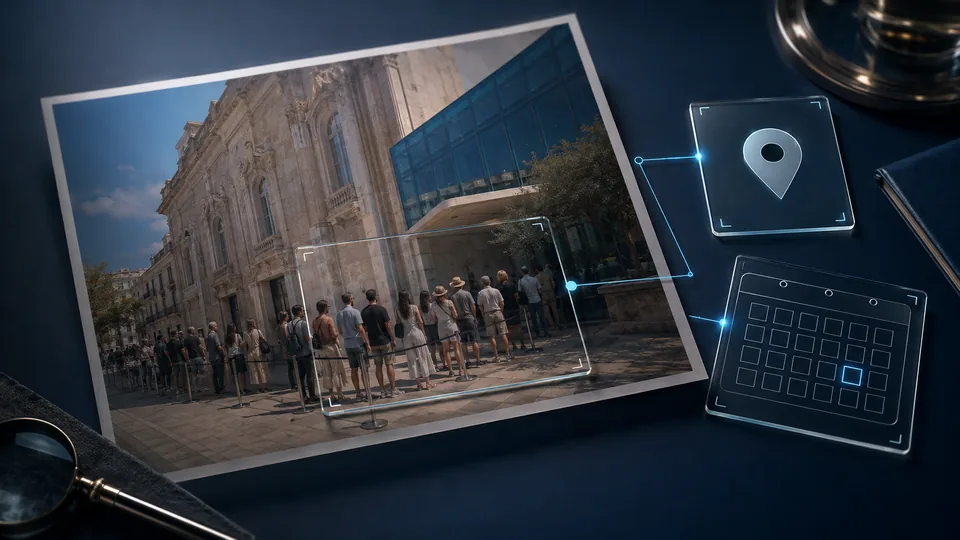
Consider a fictional example. A photo of people outside a museum is described as “this morning's protest.” The image might show a queue for an exhibition the previous year. Until you find evidence, the presence of people outside the building proves neither a protest nor the date.
Form a precise question: “Does this photograph document that gathering, in that place, on that day?” Do not begin only from the impression that the scene looks credible or suspicious.
How to run a reverse image search
A reverse search starts from the photograph rather than a phrase. The official Google Lens guide explains how to use a file or image address to find matching or similar pages and images. Results are starting points: open the pages and inspect the context in which the photo appears.
If the material is private or confidential, do not upload it to external services before deciding whether you may share it. Even for public photographs, retain the initial link and distinguish the original from copies prepared for the search.
Try the full image first. If frames, overlaid text, or a chat interface occupy much of a screenshot, you can also search just the photographic area while keeping the complete copy to document the message received. A similar result is not necessarily the same photograph; compare stable details in the scene.
Reconstruct the timeline without inventing a capture date
For every useful result, record the address, date shown on the page, caption, and any photo credit. Look for earlier uses that are consistent with one another. The first page you find is only the earliest one you located, not necessarily the first publication ever.
Google explains that “About this image”, where available, can show context and information about an image's history in its results. A discovery or indexing date is not the capture date, so record which kind of date you are reading.
In the museum example, documented use of the same photograph on an earlier page would contradict its presentation as a photo taken today. It would not, however, prove that no gathering took place today. You checked the use of the photo, not every event at that location.
Compare the place, caption, and visual details
Use recognizable features to form hypotheses: signs, building outlines, the arrangement of entrances. Then find separate supporting evidence. Do not turn a generic detail, such as a type of vegetation or a common facade, into a certain location.
This table helps prevent leaps in logic:
| Observation | Check to perform | Conclusion to avoid |
|---|---|---|
| Same museum entrance | Compare several details with a source about the location | “Same city, therefore the same event” |
| Photo used before | Confirm the image identity and date of the reference | “No event happened today” |
| Conflicting captions | Trace the credit or original publication | “The most repeated description is correct” |
| No match found | Broaden the search and ask for the source | “The photo is new or AI-generated” |
If doubts remain, ask the publisher where they obtained the file. Do not try to identify or contact private people shown in the scene when that is unnecessary for verification.
Metadata and credentials: useful within a precise scope
EXIF metadata may contain information to compare with the caption. It is not an automatic guarantee: the data may be absent, modified, or refer to a processed copy.
C2PA credentials, when available and validated, concern claims associated with the asset. The technical specification separates this information from judgments about the truth of content. A post can attach new words to a photograph without those words forming part of the credential you are checking.
Check the file, publication, and claim separately. This distinction is especially important when an image is reused in an article, newsletter, or social preview.
How to publish a useful correction
Begin by explaining the verified context: which earlier use you found and which part of the current caption lacks support. Include the references needed without unnecessarily amplifying the misleading message or exposing personal data.
If you publish archive images, label them near the photograph and use a caption that survives previews. In the digital press kit, associate every file with a description, version, and terms of use so recipients do not have to reconstruct its meaning from the file name.
Frequently asked questions
Does no result in a reverse search mean the photo is fake?
No. The image may not appear in available results or may be difficult to find in the form you received. No matches is a limitation of the search, not a verdict on origin.
Can I use the same method for a video?
You can search meaningful frames, but a still image does not verify editing, sequence, or audio. For those aspects, see the guide to deepfakes and suspicious videos.
Can an authentic photograph contribute to fake news?
Yes. An incorrect caption can assign a meaning the photo does not document. That is why preventing fake news requires checking the story as well as the image.
Sources and further reading
Technical and editorial references consulted for this guide. Examples are illustrative and do not document real cases or specific integrations.